

Joining a service
Joining a live service takes about two taps once you have the link or QR code.
Scan or open the link
Section titled “Scan or open the link”Your church shares a listener URL or QR code from the control panel — on screen, in a bulletin, or on a welcome poster.
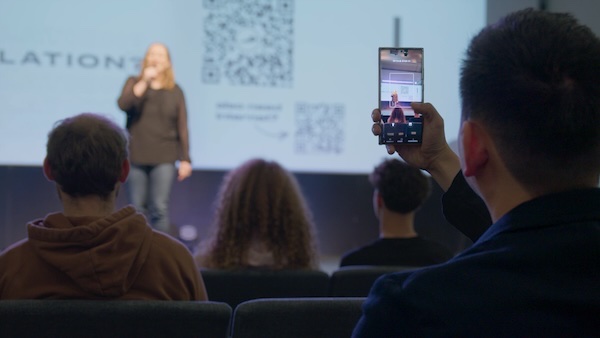
- QR code — point your phone camera at the code and open the link in your browser.
- Link — tap the URL your church sends (text, email, or chat).
See Resources for printable poster templates your church can use.
Choose your language
Section titled “Choose your language”Open the link and you land on the language picker. Search for your language — you do not have to scroll the full list.
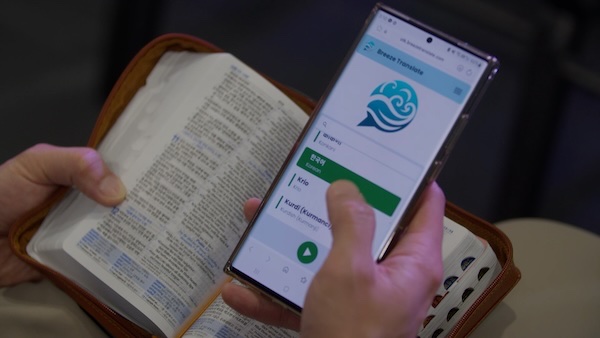
Pick any supported language and change it anytime from the menu. (See Listener languages on every plan.)
Tap Start
Section titled “Tap Start”After you select a language, tap the green Start button. Captions begin once the page loads and your church’s stream is live.
If you see There are no captions streaming right now, the service may not have started yet — ask someone nearby or wait a moment and refresh.
Browser tips
Section titled “Browser tips”- Use Safari, Chrome, or Firefox — not a restricted in-app browser from a third-party QR scanner. If a built-in scanner opens a limited view, copy the URL and paste it into your browser instead.
- You do not need to install an app from an app store.
Prefer the original language?
Section titled “Prefer the original language?”You can also read captions in the spoken language of the service, without translation. Tap Follow in the original language at the bottom of the language screen. See Caption mode for when to use this.
Next steps
Section titled “Next steps”- Reading captions — what you see on the live screen
- Client app issues — if text does not load