

Control panel issues
本頁內容尚未翻譯。
These steps address connection and transcription problems on the operator side. For microphone and desk routing, see Audio input and routing. For network setup, see Network and Wi‑Fi.
Start with Support chat
Section titled “Start with Support chat”If something is wrong during a service and you need genuine help right there and then, open Support chat in the control panel first. The bot can see live session logs and diagnose in real time — much quicker than working through this guide.
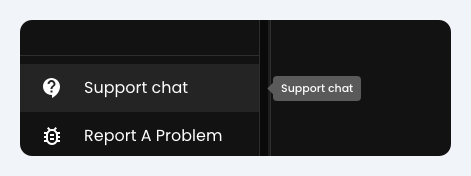
Look for Support chat near the bottom of the sidebar, above Report A Problem. The rest of this page is for when you want to try a few checks yourself.
Stuck on “Connecting”
Section titled “Stuck on “Connecting””Symptom: The control panel hangs on Connecting and never finishes starting the stream.
Steps:
- Set Source Language to Multi-language on the Broadcast page (see Transcription modes).
- Try another browser (Chrome, Safari, Edge, Firefox).
- Try another device; a phone is ideal to check there isn’t a wider issue with Breeze, your Wi-Fi, Browser or device. It can also work well as a fallback.
- Test on a mobile hotspot to rule out church firewall issues (see Network and Wi‑Fi).
For latency that builds over time or stream drops, see the sections below.
Compounding latency or delay over time
Section titled “Compounding latency or delay over time”Symptom: Translations appear progressively later as the service continues, causing a compounding lag.
Steps:
- Refresh the connection. Briefly stop and restart the stream during a worship song or a natural break to reset the server connection.
- Keep the tab front and center. Ensure the control panel tab remains active and focused. Browsers aggressively throttle background windows to save power, which can slow down live audio processing. On an iPad, install Breeze to the Home Screen and use Guided Access — see Keep the control iPad awake.
- Switch browsers. If you experience persistent latency on Safari or Edge, switch to Google Chrome or Firefox for more stable background connection management.
- Check your internet connection: see Network and Wi‑Fi.
Stream drops and connection lost messages
Section titled “Stream drops and connection lost messages”Symptom: The stream unexpectedly cuts out during live events. You may see a snackbar message such as Connection to the Breeze Server has been lost. with a Try to reconnect button, or Connection to Breeze Server lost. Buffering translations and trying to reconnect. while you are on air.
Steps:
- Hardwire your connection. Avoid running your control device on crowded congregational Wi‑Fi; use a dedicated wired Ethernet connection or a stable mobile router.
- Check network stability. Run a packet-loss and stability test rather than a simple speed test. Spikes in jitter or out-of-order packets will drop a live stream even if your download speed looks fast. (see Network and Wi‑Fi)
- On an iPad, rule out screen lock or backgrounding. If the stream started fine then went quiet with no reconnect, iOS may have suspended the app — see Keep the control iPad awake.
- Open Support chat straight away while the issue is happening so it can diagnose in real time — see Support chat. Use Report A Problem only if you do not need to resolve it right now.
Missing audio level meter or blank transcripts
Section titled “Missing audio level meter or blank transcripts”Symptom: The control panel shows the system is ready to stream, but the audio level bar is completely unresponsive and the downloaded transcript is empty.
Steps:
- Check software conflicts. Close conflicting live-production software (ProPresenter or OBS) that might be competing for exclusive access to the same mixing desk or audio interface.
- Isolate your hardware. Try loading Breeze on an alternative laptop plugged into the same mixer to determine whether the issue is a local computer driver mismatch.
- Clear browser data. Clear the browser’s cache and cookies, or test your audio source using our simple tool on a different supported web browser.
See also Audio input and routing if the meter never moves at all.
Green audio meter moves but no text generates
Section titled “Green audio meter moves but no text generates”Symptom: The status shows On Air and the audio level bar moves consistently, but it does not track the speaker’s voice levels accurately, and the transcript hangs on three blinking dots.
Steps:
- Verify the sound desk mix output. Ensure the dedicated output or aux send going to the computer has not been muted, turned down, or mixed with distracting background music or instruments. Clean, dry vocal audio is vital for proper transcription.
- Do a test recording: use our simple tool to do a test recording in the same browser with the same input device.
- Open Support chat while it is still happening if you need help now — see Support chat. If you are not staying to fix it, Report A Problem will still capture diagnostics.
Still stuck?
Section titled “Still stuck?”Email info@breezetranslate.com with your church name, browser, desk model, and what you already tried.