

Big screens
本頁內容尚未翻譯。
You can welcome people on personal phones, on a shared screen, or both — from the same live session. Big-screen captions show one language for everyone reading together; each phone can still pick any language.
When to use a big screen
Section titled “When to use a big screen”Big-screen captions work well when:
- Someone is sharing in a language most of the room does not follow — a testimony, prayer, or sermon in another language.
- There is no single main language — for example when two congregations meet and each uses a different language day to day.
- You want a shared screen so everyone can read along together, not only on personal devices.
Personal phones remain the default when many languages are represented and each person can pick their own language.
How it fits together
Section titled “How it fits together”
The control panel sends audio to Breeze. Breeze sends captions to the display page (one language per URL) and to the client app (any language per phone). Add the display page to ProPresenter, OBS, EasyWorship, or similar — see Presentation software.
Step-by-step
Section titled “Step-by-step”- Log in to the control panel.
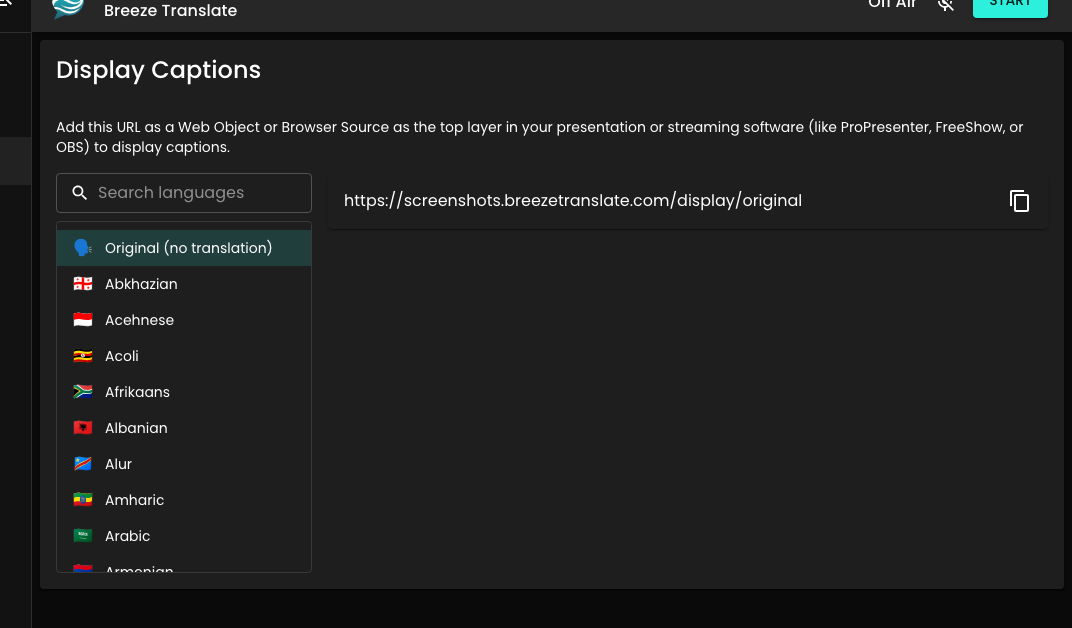
- Open Display Captions from the navigation menu.
- Select a language from the list — or Original for the spoken transcript without translation.
- Copy the display URL shown on the right (for example
https://yoursubdomain.breezetranslate.com/display/es). - Add the URL to your presentation or streaming software as a web page, browser source, or web cue — see Presentation software.
- Start your Breeze session when the service begins. Captions appear on the display page when speech is being translated.
Display URL
Section titled “Display URL”Each display URL shows one language. If you need Spanish on the projector and English on a second screen, copy two URLs from Display Captions and add each to its own layer or output.
Listeners on phones can still choose any supported language — big-screen captions do not limit what appears on personal devices.
Adjust caption size
Section titled “Adjust caption size”Add a fontSize parameter to the display URL to change how large the captions appear. The value is in CSS pixels (greater than 0, up to 200). Leave it off for the default size.
Example:
https://yoursubdomain.breezetranslate.com/display/es?fontSize=48
On a projector, try something like 48–72 and adjust for your room. After you change the parameter, reload the page or update the URL in your presentation software so the new size takes effect.
Adjust colours
Section titled “Adjust colours”The display page is transparent by default so captions sit over your slides or video. You can override colours with URL parameters when you need a solid backdrop or different text styling:
| Parameter | What it changes | Default |
|---|---|---|
background |
Full page background | Transparent |
box |
Caption pill behind the text | Semi-transparent black |
text |
Caption text colour | White |
Values are hex colours without a leading # (for example 000000, fff, or 000000cc for transparency). A # in the query string starts a URL fragment, so ?text=#fff will not apply. Parameter names are case-insensitive (fontSize and fontsize both work).
Examples:
https://yoursubdomain.breezetranslate.com/display/es?fontSize=56&background=000000&text=ffffff
https://yoursubdomain.breezetranslate.com/display/es?box=000000aa&text=ffff00
Combine parameters with &. After you change them, reload the page or update the URL in your presentation software.
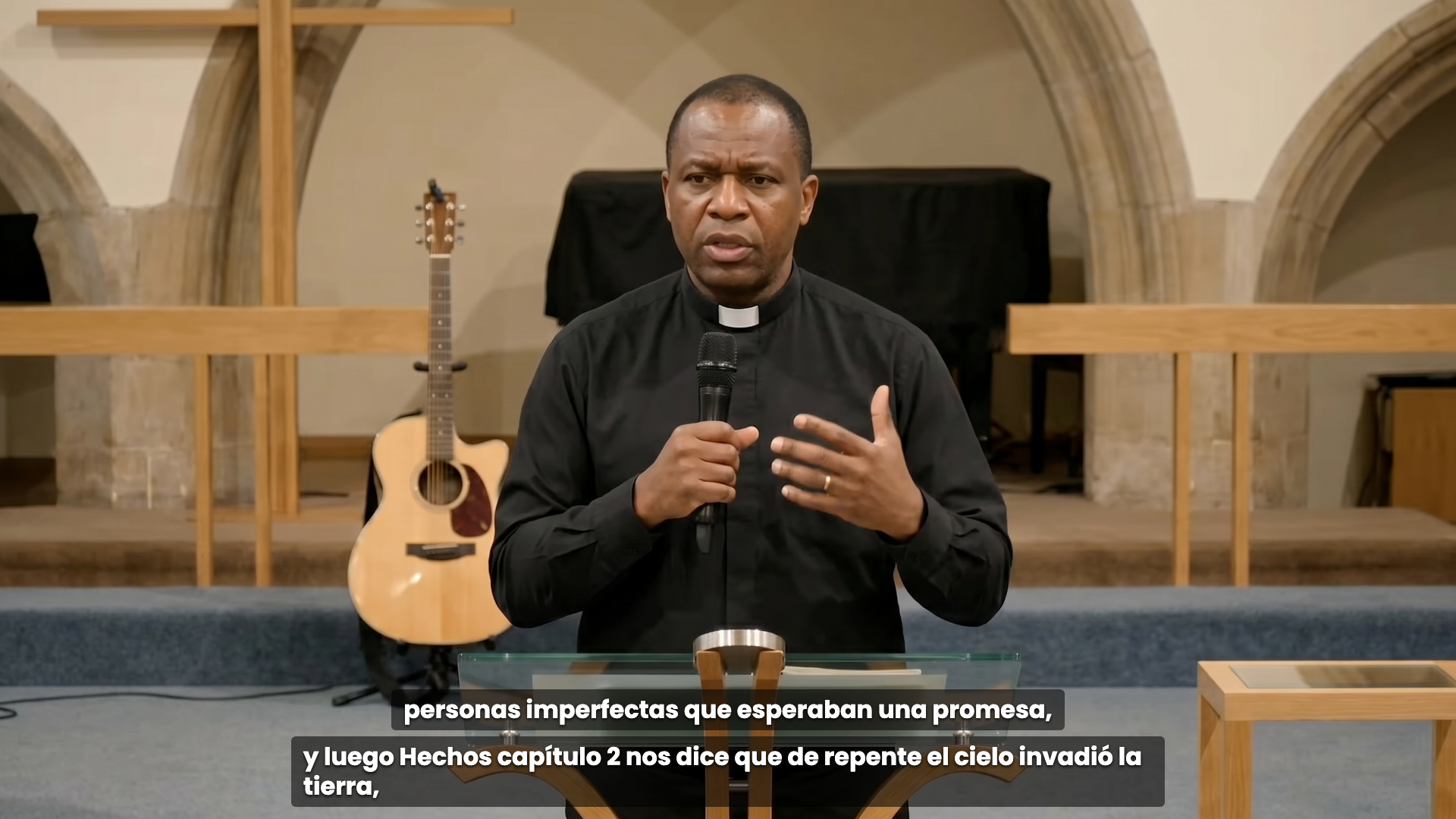
English audio with Spanish on the big screen — listeners can still choose any language on their phones.
During the service
Section titled “During the service”- Keep the control panel device plugged in and on a stable network.
- Leave the display page loaded in your presentation software; captions update automatically while the session runs.
- When you are ready, press Start — you will see On Air and the sound meter move when speech is coming through. That is your cue that captions are live on the big screen too.
Promoting translation in the room
Section titled “Promoting translation in the room”Posters, slides, and on-screen QR codes help people notice the option without feeling singled out. Download templates from Resources.
Troubleshooting
Section titled “Troubleshooting”| Problem | What to check |
|---|---|
| Blank display page | Is the Breeze session started? The display URL only shows captions while a session is live. |
| Wrong language | Open Display Captions and confirm you copied the URL for the intended language. |
| Captions behind slides | Move the web page or browser source to the top layer in your presentation software. |
| Captions too small or too large | Add or change ?fontSize= on the display URL (for example ?fontSize=48), then reload or update the URL in your presentation software. Values above 200 are ignored. |
| Need a solid backdrop or different text colour | Add ?background=, ?box=, and/or ?text= with hex values and no # (see Adjust colours), then reload or update the URL. |
| Meter moves but no captions | See Control panel issues. |
Go deeper
Section titled “Go deeper”- Presentation software — ProPresenter, OBS, EasyWorship, Proclaim, WorshipTools, FreeShow, and more
- The client app — phones and tablets
- Your first service — rehearsal and Sunday display tips