

Listener app overview
此内容尚不支持你的语言。
The listener app is a mobile-friendly web experience — no app store install required. Open your church’s Breeze link or scan their QR code, choose your language, and read captions or hear spoken translation.
This guide is written for people receiving translation during a service. If you are setting up Breeze for your church, see Quick start and Attender experience.
Watch the full journey
Section titled “Watch the full journey”How it works
Section titled “How it works”- Scan or tap the link your church shares.

- Choose your language — search if you need to. You can change it anytime.
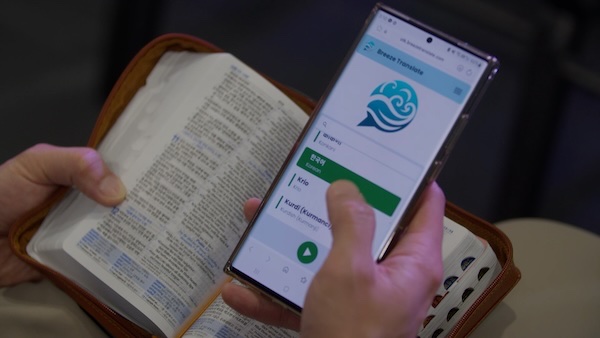
- Read the captions while the service is live.
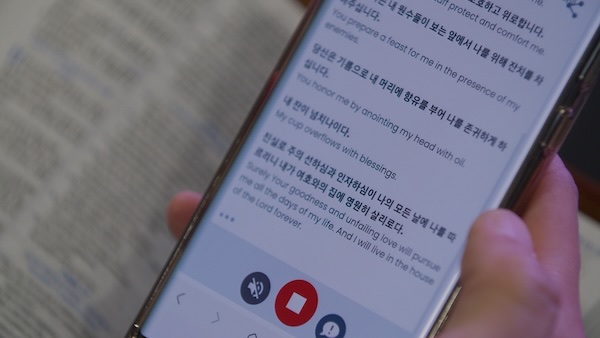
Want to hear the translation too? Tap Turn audio on (see Audio).
The control bar
Section titled “The control bar”The buttons along the bottom of the live screen are how you control everything.

- Turn audio on / off — the speaker button on the left (shown when audio is available for your language).
- Stop — the red button in the middle. It takes you back to the language list.
- Leave feedback — the button on the right. Use it to tell us about a problem.
In this guide
Section titled “In this guide”- Joining a service — QR codes, links, search, and the Start button
- Reading captions — showing both languages, catching up, and text size
- Caption mode — captions-first churches and the original language
- Audio — when and how spoken translation works
- Settings and sharing — menu, light and dark mode, share, and feedback
Listener languages on every plan
Section titled “Listener languages on every plan”Each person selects their own language on first visit. You can choose any language from our full supported list — on every plan. Your church does not turn languages on or off for you.
Device requirements
Section titled “Device requirements”Any modern phone, tablet, or laptop with Chrome, Safari, Edge, or Firefox. Mobile data or Wi‑Fi both work; Breeze uses very little data, so does not require Wi-Fi or a high data allowance. (see Network and Wi‑Fi).
For church teams
Section titled “For church teams”- Announce how to join before the stream starts.
- Share this page with first-time listeners:
- See Welcome teams for briefing greeters and ushers.
Need help?
Section titled “Need help?”- Client app issues — captions not loading, audio problems
- Audio output setup — get the best voices on iOS and Android