

Reading captions
Este conteúdo não está disponível em sua língua ainda.
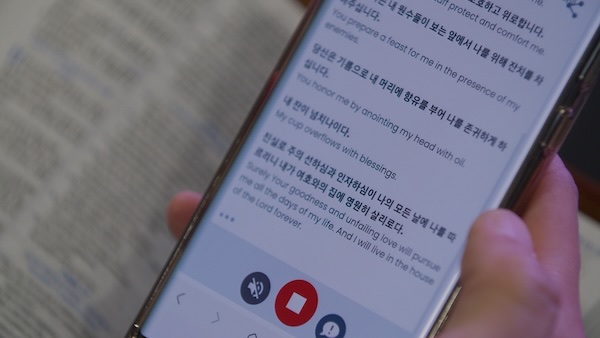
Once you tap the green Start button, translated captions stream to your phone while the service is live.
What you see
Section titled “What you see”- A welcome line when you first join.
- Live captions that update as speech is translated.
- A round arrow button that appears when you scroll up (see Catching up).
- A red LIVE indicator while the stream is active.
Bilingual or translation-only
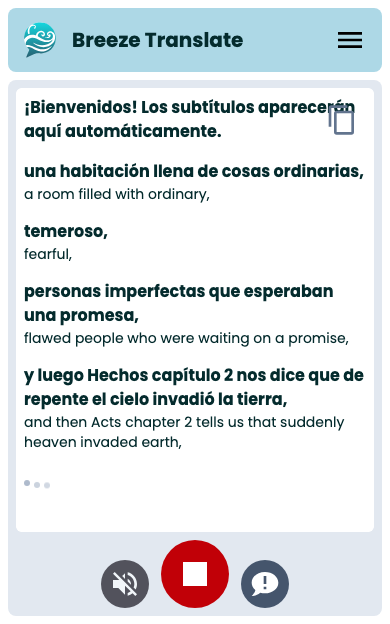
Section titled “Bilingual or translation-only”By default you see both the translation and the original spoken text. Open the Menu (☰) and tap Hide original transcript to show only your language.
Bilingual (translation + original):
Translation only:
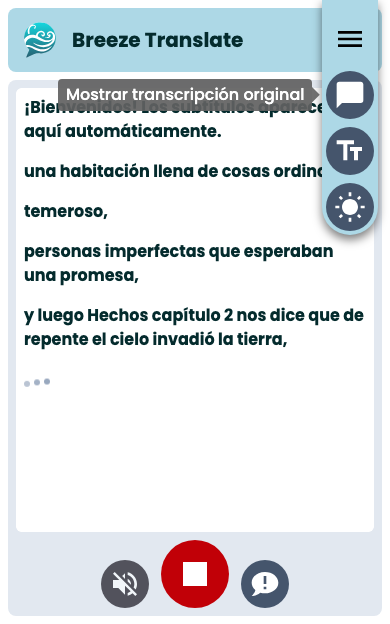
To bring the original text back, open the Menu again and tap Show original transcript.

Catching up
Section titled “Catching up”New captions push older ones up, and the screen scrolls on its own to stay at the latest line.
To re-read something you missed, drag up with your finger. This stops the auto-scroll so you can read at your own pace.
When you want to return to the live line, tap the round arrow button in the bottom corner. It jumps you straight back to the newest caption.
Text size
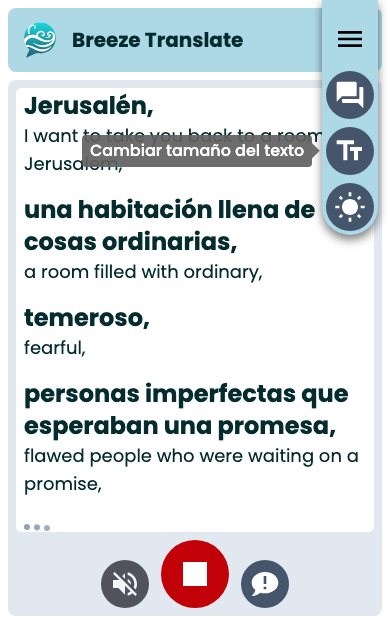
Section titled “Text size”Tap Menu, then Change text size to cycle through small, medium, and large. Your choice is remembered on this device.
Your phone’s system accessibility settings also affect how text appears.
Your captions are saved on this device
Section titled “Your captions are saved on this device”Breeze keeps recent captions on your phone for about six days per language. If you close the browser and reopen the same link, you can still read what you missed — with date separators when captions span more than one day.
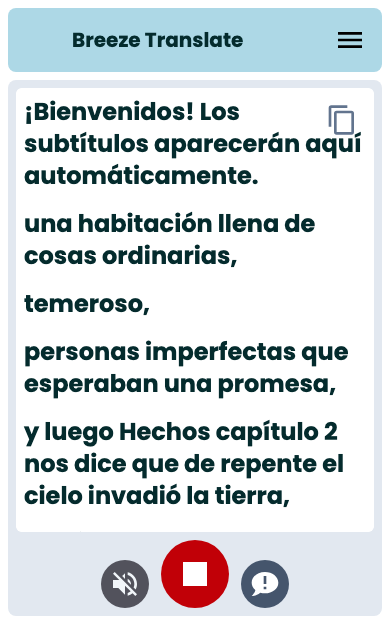
This is stored on your device only — not in the cloud. Clearing browser data removes saved captions.
During the service
Section titled “During the service”- Keep the screen on, and the translation open. Phones stop Breeze running when it’s not being displayed.
- Refresh once if captions stop updating (sometimes happens on older devices).
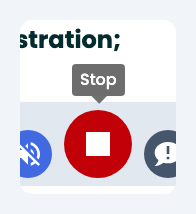
- Tap the red Stop button to leave the live view and return to the language list — your saved captions remain.
- For spoken translation, see Audio.
Next steps
Section titled “Next steps”- Settings and sharing — dark mode, copy, and share
- Client app issues — troubleshooting