

Audio on your phone
Este conteúdo não está disponível em sua língua ainda.
Breeze shows captions by default. Spoken translation (text-to-speech) is off until you turn it on.
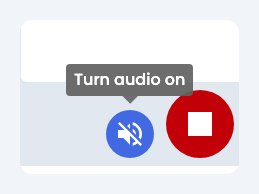
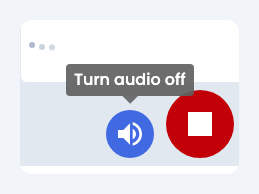
Tap the speaker button at the bottom of the live screen. When audio is off it says Turn audio on. Tap it again to turn audio off.
How audio works
Section titled “How audio works”- Spoken audio uses your phone’s built-in text-to-speech for most languages, or Breeze Custom voices for some languages where platform voices are limited.
- Reading captions is the main way most people follow along. Audio is optional and depends on your device and language.
To keep costs low, Breeze plays speech on your device for most languages. Voice quality depends on your phone — not every device sounds the same. See Audio output: get the best voices to improve it.
First tap on iPhone
Section titled “First tap on iPhone”Apple requires a tap before websites can play audio. Tap Turn audio on once; spoken translation can then play for the rest of your session.
Bluetooth headphones can delay audio — test with your phone speaker first if something seems wrong.
Audio quality feedback
Section titled “Audio quality feedback”After audio starts, Breeze may ask How is the audio quality? Tap happy or sad, or Give details to send feedback. This helps us improve voices for your language and device.
Get the best voices
Section titled “Get the best voices”Robotic or missing audio usually means your device needs a better voice pack installed. Follow the full step-by-step guide:
Audio output — get the best voices on your device
Covers iOS (Enhanced/Premium voices — not Siri), Samsung, Pixel, Xiaomi, and Breeze Custom voices.
If audio fails during a service
Section titled “If audio fails during a service”- Confirm captions are working (they use a separate path from audio).
- Check volume and silent mode.
- Revisit Audio output setup for your language.
- Tap Leave feedback in the app menu, or ask your church to email info@breezetranslate.com.
See also Client app issues — missing spoken audio.
The speaker, Stop, and Leave feedback buttons are explained on the Listener app overview.