

Support chat
Este conteúdo não está disponível em sua língua ainda.
Support chat is built into the control panel. If you are having a problem and need genuine help right there and then, open chat. It can help immediately, in real time, while the issue is still happening — without leaving your session.
Where to find it
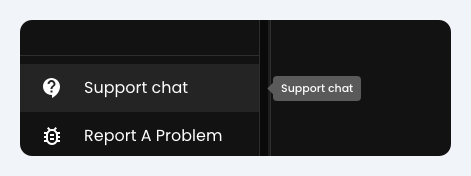
Section titled “Where to find it”- In the control panel — open Support chat in the sidebar (near the bottom, above Report A Problem).
- On the login page — if you cannot sign in yet, use Support chat below the login form.
What to expect
Section titled “What to expect”- Help while it is happening — the BreezeBot can work through the issue with you mid-service, not after you have packed away.
- In-depth, contextual support — the BreezeBot sees what’s happening on your computer, like what audio devices are connected, so it can help diagnose problems quickly and effectively.
- AI caveat — as with all AI systems, it may not always be right, so follow its advice judiciously.
- Every message is reviewed by a human on the Breeze team. Support chat is not bot-only, but the bot is usually not busy worshipping in their own church services!
Support chat vs Report A Problem
Section titled “Support chat vs Report A Problem”| Support chat | Report A Problem | |
|---|---|---|
| Best for | Genuine support now — live diagnosis while the issue is happening | Logging it for later, if you do not need to resolve it right now |
| Where | Sidebar Support chat (also on login) | Sidebar Report A Problem |
If you need help during a service, use Support chat. Report A Problem is fine when you are not staying to fix it — it still sends us useful diagnostics. See Troubleshooting.
Tips for a helpful message
Section titled “Tips for a helpful message”- Say what you expected, what you saw, and roughly when it started.
- Mention your browser or device if it seems relevant.
- If you are logged in, your church context is already available to the bot — you do not need to re-introduce yourselves every time.
Cannot open the control panel?
Section titled “Cannot open the control panel?”Email info@breezetranslate.com. Include your church name, browser, and what you already tried.