

Audio output
Este conteúdo não está disponível em sua língua ainda.
Breeze supports audio output (text-to-speech) for many listener languages — not just on-screen captions. To keep our costs low, Breeze uses on-device text-to-speech for most languages. Sometimes this requires tweaking a couple of settings to get the best voices on your device.
See Listener app issues if captions work but spoken audio does not.
Supported languages and voices
Section titled “Supported languages and voices”Most listener languages use your phone’s built-in text-to-speech engine (Apple on iOS, Speech Services by Google on Android). Some use Breeze Custom voices — Breeze’s own speech engine where platform voices are limited — and work without installing device voice packs.
For the authoritative full list of supported languages and voice options, see breezetranslate.com/languages.
iOS (iPhone and iPad)
Section titled “iOS (iPhone and iPad)”Crucial rule: Do not select voices labelled Siri. Apple blocks these from working on websites. You must download the Enhanced or Premium versions of standard voices.
Modern iPhones (iOS 17, 18, and later)
Section titled “Modern iPhones (iOS 17, 18, and later)”- Open Settings and tap Accessibility.
- Tap Spoken Content (do not select VoiceOver).
- Tap Voices and select your language (for example English).
- Choose a voice name such as Samantha, Ava, or Daniel.
- Tap the voice name. Look for (Enhanced) or (Premium). Tap the cloud icon to download it.
- Once the download completes, tap the name again so a blue checkmark appears next to the Enhanced version.
- Force close your browser (swipe up and away) and reload the Breeze page.
Legacy iPhones (iOS 13, 14, and 15)
Section titled “Legacy iPhones (iOS 13, 14, and 15)”Go to Settings → Accessibility → Spoken Content. Select Voice, then tap the cloud icon next to Enhanced. Ensure the checkmark is placed next to Enhanced once the download completes. Force close your browser and reload the page.
Android
Section titled “Android”On Android, robotic or English-sounding speech usually means offline voice data is missing, the wrong engine is selected, or Google’s Language detection setting is blocking the voice you need (this is especially common for Filipino).
Samsung Galaxy (One UI)
Section titled “Samsung Galaxy (One UI)”Go to Settings → General management → Text-to-speech. Tap Preferred engine and select Speech Services by Google. Install the offline pack by tapping the gear icon next to Preferred engine, then tap Install voice data. Also check Language detection under the engine gear (see Pixel steps below) — set it to Aggressive or Off if a language such as Filipino will not speak.
Google Pixel and stock Android
Section titled “Google Pixel and stock Android”- Open Settings → Accessibility → Text-to-speech output.
- Confirm Preferred engine is Speech Recognition and Synthesis from Google (or Speech Services by Google).
- Tap the gear icon next to the preferred engine.
- Tap Install voice data and install the language you need (for example Filipino).
- Back on Text-to-speech output, set Language to that language if you are testing it.
- Under the engine gear again, open Language detection and choose Aggressive or Off. Conservative can stop Filipino (and similar languages) from using the installed voice even when it appears in the list.
- Force-close Chrome (or your browser) and reload the Breeze page.
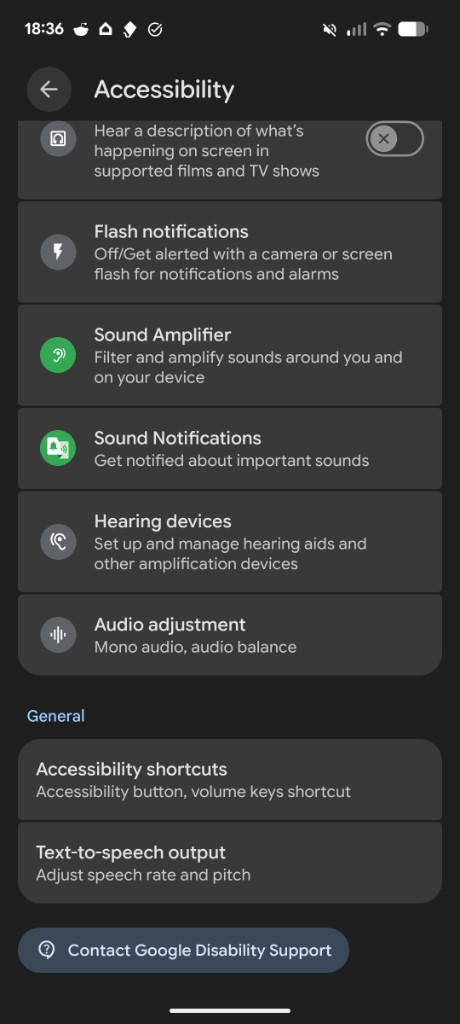
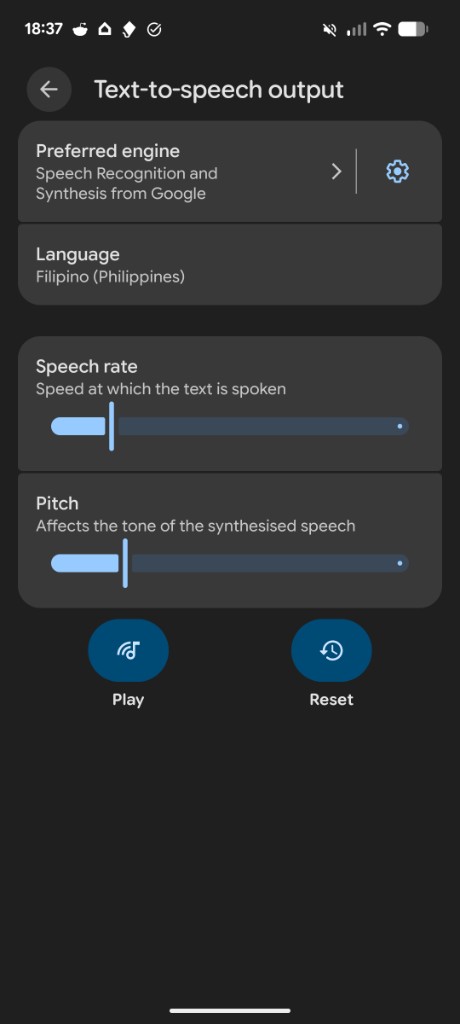
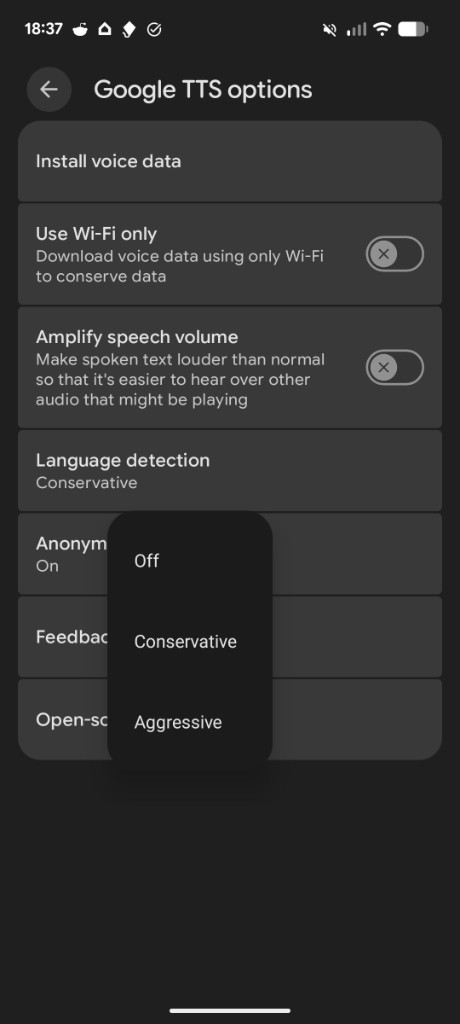
Xiaomi / MIUI / HyperOS
Section titled “Xiaomi / MIUI / HyperOS”Go to Settings → Additional Settings → Languages & input → Text-to-speech output. Ensure Speech Services by Google is selected. To fix battery-related issues, go to Settings → Apps → Manage Apps, search for Speech Services by Google, tap Battery saver, and select No restrictions. If speech still uses the wrong language, open the engine gear and set Language detection to Aggressive or Off, as on Pixel.
Breeze Custom voices
Section titled “Breeze Custom voices”Breeze Custom voices work through Breeze’s own speech engine — listeners do not need to install device voice packs. See breezetranslate.com/languages for which languages use Breeze Custom voices.
Listeners still need to tap Turn audio on in the app. On iPhone, the first tap unlocks audio playback for Breeze Custom voices.
Testing
Section titled “Testing”To test Breeze for a particular language on a specific device:
- Confirm volume is up and silent mode is off.
- Bluetooth headphones can delay or block audio — test with the phone speaker first.
- Captions should work even when spoken audio does not — if only audio fails, revisit the device setup steps above.
If spoken audio still fails during a service, listeners can use Leave feedback in the app menu, or email info@breezetranslate.com.